
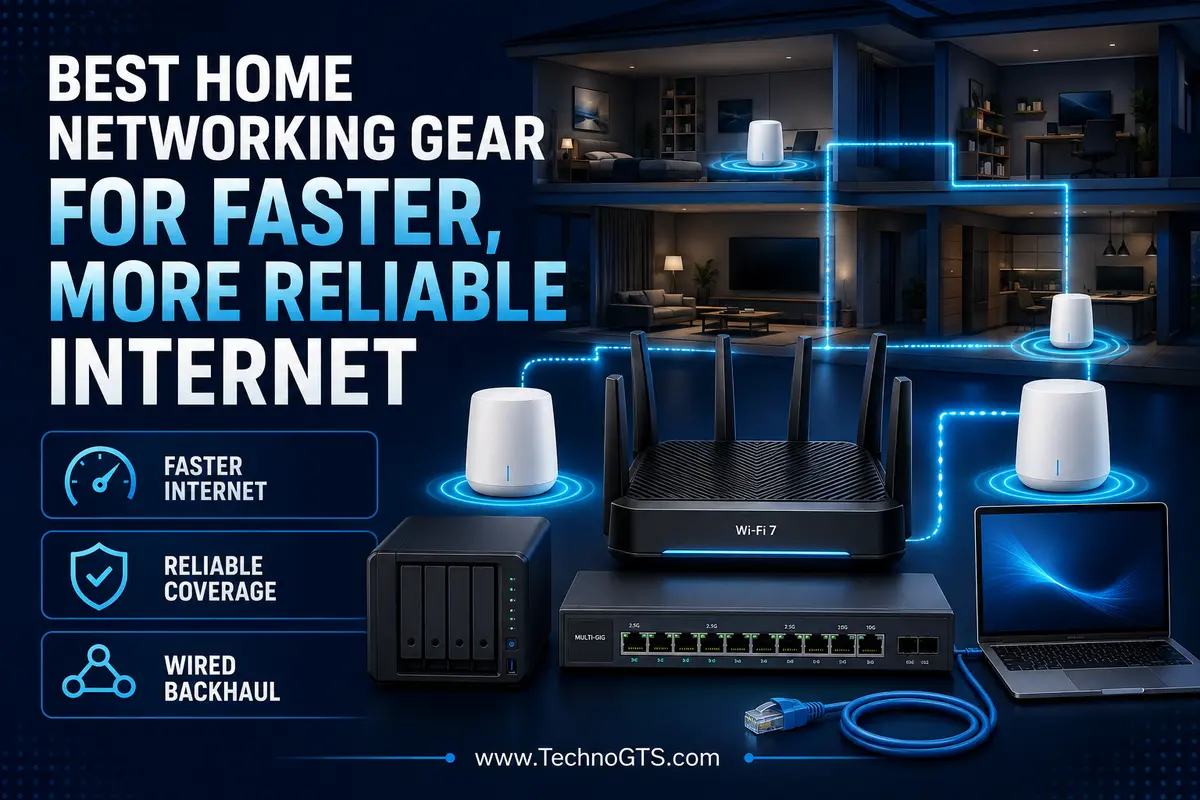
Best Home Networking Gear for Faster Internet
Your Internet Is a Chain, Not a Single Box
When home internet feels slow, the router becomes the immediate suspect. That instinct is understandable but incomplete. A home connection is a chain that begins at the provider, passes through an optical network terminal or modem, enters a router, travels through Ethernet or Wi-Fi, and ends at a client device. The speed and reliability you experience are limited by the weakest link in that chain. Replacing one box without identifying that link can produce an expensive network that behaves almost exactly like the old one.
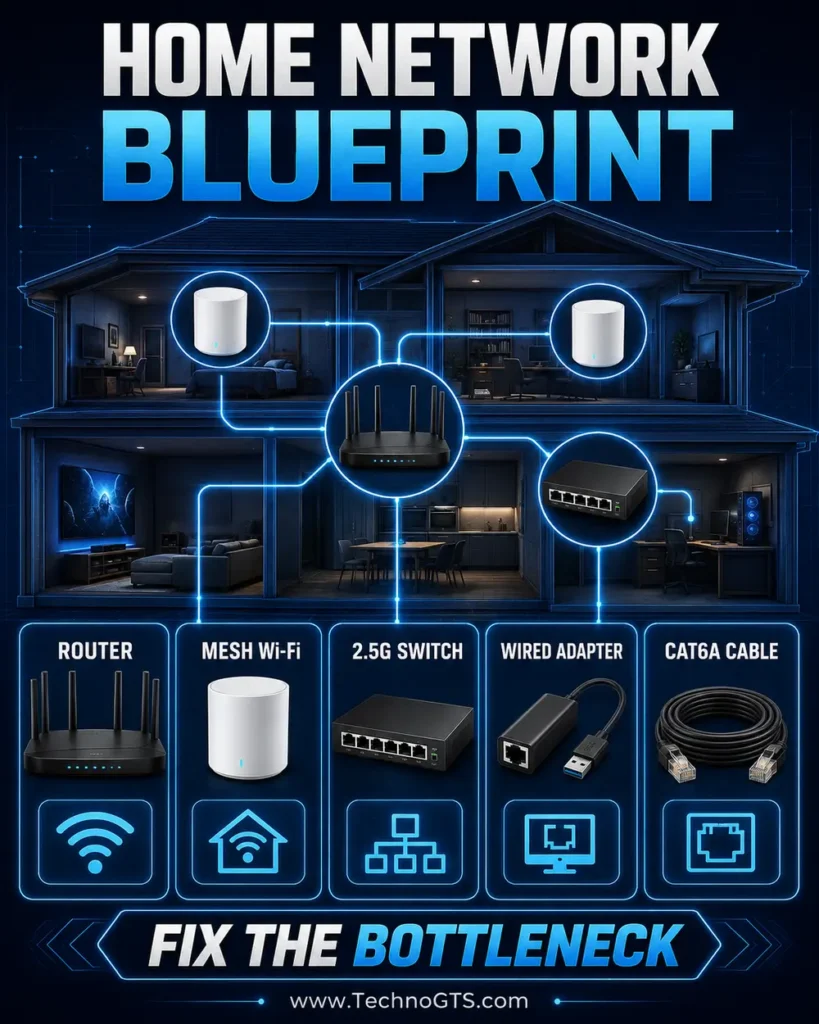
The most effective upgrade might be a modern Wi-Fi 7 router, but it might also be a second access point placed closer to the bedrooms, a 2.5GbE switch for a NAS and workstations, a USB Ethernet adapter for a thin laptop, or a correctly terminated cable replacing a damaged run. This guide treats best home networking gear as a coordinated system. The five recommendations solve five different problems rather than competing for the same shelf space.
Our best main-router choice is the TP-Link Archer BE550, a tri-band Wi-Fi 7 router with one 2.5Gbps WAN port, four 2.5Gbps LAN ports, EasyMesh compatibility, and a practical balance of performance and cost. The eero Pro 7 is our whole-home option for readers who value coordinated mesh coverage and simpler administration. NETGEAR’s MS308E expands a wired network with eight 2.5GbE ports and light management. Plugable’s USBC-E2500 adds 2.5GbE to computers that lack it. Cable Matters’ Cat6A shielded patch cable completes selected high-noise or 10GbE-capable links.
These products are not a mandatory shopping list. A small apartment with a 300Mbps plan may need only one well-placed router. A large home with Ethernet in the walls may benefit more from access points and a switch than from a premium mesh kit. A house with no wiring and several dense walls may need multiple wireless nodes. We provide a blueprint that lets you buy only the pieces that address measured limitations.
Begin by documenting the current network. Record the internet plan, modem or ONT model, router location, Ethernet port speeds, connected-device count, dead zones, wired endpoints, and important applications. Run a wired speed test at the modem/router, then a nearby Wi-Fi test, followed by tests in problem rooms. Note download, upload, latency, packet loss, and link rate. If the wired result is already low, explore provider or modem issues before purchasing wireless hardware.
For a broader view of the available technologies, start with the TechnoGTS networking and Wi-Fi hub. If you already know the limitation is inside the house rather than at the provider, our home networking section can help you map routers, switches, cabling, access points, and clients into one design.
This article is written for US households and home offices. We reviewed current manufacturer pages, support documentation, interfaces, standards, and ownership considerations. We do not claim unperformed hands-on testing. Manufacturer wireless rates and coverage numbers are treated as favorable-condition capabilities, not guaranteed internet performance. Construction, interference, client radios, firmware, service plan, and placement change outcomes.
The most important lesson is that reliability often comes from structure rather than raw speed. Wired backhaul removes wireless competition between nodes. A switch provides a dedicated link to each connected device. A properly placed router avoids unnecessary wall loss. Updated client drivers reduce disconnects. Separate guest and IoT networks limit trust. A good home network is designed, measured, and documented; it is not simply purchased.
🧭 Network-first rule: Fix the internet source first, the router and coverage layer second, the wired distribution layer third, and client devices last. Upgrade out of order only when evidence points elsewhere.
Quick Summary: Match the Gear to the Bottleneck
Best main router — TP-Link Archer BE550: A balanced Wi-Fi 7 router for households moving to multi-gigabit networking. Five 2.5GbE ports, tri-band wireless, EasyMesh support, VPN tools, and a USB 3.0 port make it unusually complete at its level. It is best when a single central router can cover most of the home or act as the core of a broader EasyMesh system.
Best whole-home mesh foundation — eero Pro 7: A streamlined tri-band Wi-Fi 7 mesh platform with two auto-sensing 5GbE ports per node and an app-led experience. eero states that each unit supports more than 200 devices and covers up to 2,000 square feet under its stated assumptions. Real homes should size nodes around walls, floors, interference, and backhaul—not marketing area alone.
Best multi-gigabit switch — NETGEAR MS308E: Eight auto-negotiating 100Mbps/1Gbps/2.5Gbps ports, fanless operation, web management, QoS and VLAN support make it a strong wired distribution point for a home office, NAS, gaming systems, and access points. It does not provide PoE and it does not route internet traffic.
Best quick wired upgrade — Plugable USBC-E2500: A compact 2.5GbE adapter with both USB-C and USB-A host connectivity, based on the Realtek RTL8156B platform. It can add a faster and more stable wired interface to compatible Windows, macOS, ChromeOS, Linux, and selected USB-C mobile devices without opening the computer.
Best high-spec patch cable — Cable Matters Cat6A Shielded Ethernet Cable: A 10GbE-capable shielded patch option for equipment racks, desktop links, and electrically noisy environments. It is not automatically better for every run: shielding should be used with a compatible, properly grounded channel, and ordinary certified Cat6 or Cat5e may already support the desired link.
If your current router is the clear limitation, compare more options in our Wi-Fi router category. If the router is fast near the living room but weak on another floor, the coverage designs in our mesh Wi-Fi guide are more relevant than buying a faster standalone unit.
Smart Network Blueprint
| Network layer | Recommended gear | Primary job | Use it when | Do not expect it to |
|---|---|---|---|---|
| Internet gateway/core | TP-Link Archer BE550 | Routing, firewall, Wi-Fi, multi-gig LAN | One central location covers most rooms | Create ISP speed the plan does not provide |
| Distributed coverage | eero Pro 7 | Coordinated mesh and roaming | Multiple floors/long layout create weak zones | Defeat concrete walls without enough nodes or backhaul |
| Wired distribution | NETGEAR MS308E | Add eight 2.5GbE ports | Several fast wired clients share the LAN | Replace the router or supply PoE |
| Client interface | Plugable USBC-E2500 | Add 2.5GbE to USB-C/USB-A computers | Laptop/desktop port is only 1GbE or absent | Make a 1GbE switch negotiate at 2.5GbE |
| Physical link | Cable Matters Cat6A shielded patch cable | Carry copper Ethernet between devices | 10GbE, interference, or durable patching justifies it | Fix an unsupported port, bad topology, or provider issue |
A network can combine these categories without combining these exact brands. For example, the Archer can feed the MS308E, which serves a NAS, desktop, and wired mesh node. The Plugable adapter can connect a laptop to that switch. Cat6A patch cables can be used only where their stiffness and shielding make sense, while existing Cat5e remains in service on verified 2.5GbE runs.
Readers planning the wired layer should review our Ethernet switch guide. Cable category, construction, length, and installation requirements are explained separately in our Ethernet cable guide, which can prevent overspending on questionable “Cat 8” marketplace listings.
Why Trust Us
TechnoGTS evaluates each device by the role it performs in a system. Router comparisons often collapse Wi-Fi rate, internet speed, coverage, and capacity into one oversized number. We separate them. Wi-Fi class describes theoretical local signaling across bands and streams. WAN/LAN port rate describes one wired interface. Internet throughput depends on the provider path. Coverage depends on placement and structure. Capacity depends on traffic, not just connected-device count.
Our research emphasized official US product pages and technical documentation. TP-Link specifies the Archer BE550 as BE9300-class tri-band Wi-Fi 7 with one 2.5Gbps WAN port and four 2.5Gbps LAN ports. eero documents two auto-sensing 5GbE ports for the Pro 7 and positions it for plans up to 5Gbps. NETGEAR lists eight 2.5GbE ports, a fanless metal enclosure, web management, QoS, VLAN features, and a 40Gbps switching fabric for the MS308E. Plugable documents the USBC-E2500’s interfaces, chipset, power, OS support, and limitations. Cable Matters specifies 10Gbps and high-bandwidth operation for its Cat6A shielded patch line.
We also state what we did not do. We did not benchmark all five products in one physical house, so this guide does not invent throughput or range results. Even a valid lab test cannot predict a reader’s walls, interference, neighboring networks, cable plant, and clients. Instead, our testing methodology explains how to measure the current system and validate each upgrade during the return window.
The recommendations deliberately span categories. That makes the article more useful than five routers ranked by peak speed, but it means each product should be compared with alternatives in its own category. Explore the Wi-Fi 7 router collection when selecting a gateway, and consult our network adapter resources when upgrading the endpoint.
✅ Editorial boundary: Product specifications, apps, subscriptions, firmware features, pricing, and availability can change. Verify the exact hardware revision and current terms immediately before purchase.
Testing Methodology: Measure Every Hop
Our recommended test sequence begins at the fastest stable reference point. Connect a capable computer by Ethernet directly to the router or provider gateway. Confirm the negotiated link rate, disable unnecessary background traffic, and run multiple tests to geographically appropriate servers. Record median download and upload speed, unloaded latency, latency under load, and packet loss. If the result is materially below the service tier, investigate the provider, modem/ONT, WAN negotiation, cable, or provisioning.
Next test the LAN independently of the internet. Transfer a large file between two sufficiently fast local systems or use a network performance tool. This reveals whether a switch, cable, adapter, disk, or CPU limits local transfers. Internet speed tests cannot validate a 2.5GbE or 10GbE LAN when the service is slower.
Then map Wi-Fi. Use the same client at the same height in at least six locations: near the router, one room away, primary work area, bedrooms, farthest usable point, and one known dead zone. Keep the test orientation consistent. Record band, link rate, throughput, latency, and reconnect behavior. Repeat during busy evening hours because neighboring networks and household traffic change conditions.
Mesh testing adds a backhaul step. Identify which node serves the client and whether the node connects by Ethernet or wireless. Test roaming while carrying a phone through the house, but do not expect every client to roam at the same threshold; clients participate in the decision. For wireless backhaul, node placement should maintain a strong upstream link rather than sit inside the dead zone itself.
Switch testing should verify every port at 1GbE and 2.5GbE where possible. Copy data simultaneously across several paths to expose congestion or thermal instability. If using VLANs or QoS, document baseline behavior before configuration and retest after each change. Keep an accessible management address and configuration backup.
Adapter testing should compare the Plugable device with the computer’s existing interface. Use a known-good cable and 2.5GbE switch port, confirm the OS reports 2.5Gbps, and transfer local data. Monitor CPU usage, sleep/wake behavior, sustained heat, and reconnect performance after docking. For portable clients, test both USB-C and USB-A paths if you expect to use both.
Cable validation includes visual inspection, connector retention, negotiated speed, error counters, and a sustained transfer. A basic continuity tester can find opens and miswires; certification equipment is needed to prove a permanent run meets a category standard. Do not infer quality from jacket printing alone.
If a desktop’s wireless radio is the suspected limit, compare the options in our USB Wi-Fi adapter guide before replacing the entire network. If the WAN itself is cellular, our 5G router guide provides a different signal and carrier test process.
Selection Methodology: Five Roles, One Coherent Network
We selected one current, documented product for each of five common home-network roles. The router needed modern wireless, a credible multi-gigabit wired path, current security, and expansion potential. The mesh needed easy multi-node operation and fast wired backhaul. The switch needed multiple 2.5GbE ports, quiet operation, and useful management without enterprise complexity. The adapter needed broad host compatibility. The cable needed a transparent standard and realistic use case.
Compatibility and architecture received more weight than advertised speed. A 10GbE cable connected to two gigabit ports is a gigabit link. A Wi-Fi 7 router serving a Wi-Fi 5 phone uses the client’s capabilities. A 2.5GbE adapter on USB 2.0 is constrained. A mesh node with weak wireless backhaul cannot deliver the router’s full internet rate. The full path decides the result.
We favored US availability and manufacturer support. We excluded products with ambiguous category claims, unclear revisions, or roles already covered by a stronger selection. The result is not a claim that these five products are the only good choices; it is a reference architecture readers can adapt.
Households using a mature gigabit plan may find excellent value in the Wi-Fi 6 router category rather than paying for unused 6GHz features. Readers with one isolated weak room may need a targeted option from our Wi-Fi extender guide instead of a full mesh replacement.
TP-Link Archer BE550: Best Main Router
Product Snapshot
| Attribute | Details |
|---|---|
| Best for | Multi-gig households wanting one capable router with expansion options |
| Wireless | BE9300-class tri-band Wi-Fi 7 |
| Wired | 1× 2.5Gbps WAN, 4× 2.5Gbps LAN |
| Expansion | USB 3.0, EasyMesh compatibility |
| Security/management | WPA3, guest networks, VPN client/server, HomeShield features |
| Main caution | Wireless headline is aggregate; some services require subscription |
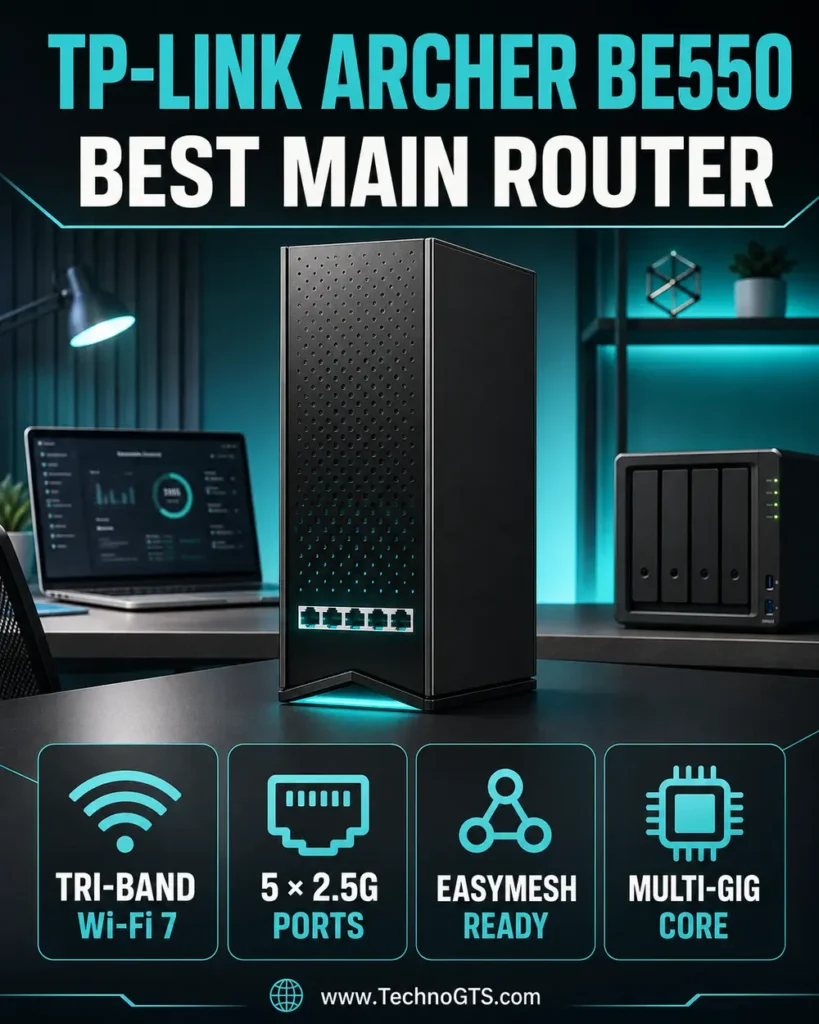
The TP-Link Archer BE550 is the strongest core-router fit for this mixed-gear guide because its wired side is as thoughtfully specified as its wireless side. Many routers advertise multi-gigabit Wi-Fi and then provide only one fast port. The Archer supplies a 2.5Gbps WAN and four 2.5Gbps LAN ports, allowing a multi-gig internet service, NAS, switch, desktop, and wired mesh backhaul to coexist without an immediate one-gigabit choke point.
Its tri-band radio combines 2.4GHz, 5GHz, and 6GHz. TP-Link lists an aggregate BE9300 class: 574Mbps on 2.4GHz, 2880Mbps on 5GHz, and 5760Mbps on 6GHz. No individual client receives the sum. A typical two-stream device negotiates a smaller link, and usable throughput is lower. The practical gains are access to cleaner 6GHz spectrum, Wi-Fi 7 efficiency features for compatible clients, and more capacity across mixed devices.
The BE550’s six internal antennas create a clean tower-shaped design. Internal antennas simplify appearance but reduce the user’s ability to reorient elements. Placement therefore matters: use an open, elevated, central location rather than a floor, cabinet, or corner. One router may cover a modest home well; a long or dense structure will still need additional access points.
EasyMesh compatibility creates an expansion route without committing to a mesh kit on day one. Add a compatible router or extender if measured coverage demands it. Ethernet backhaul is preferable where available because it preserves wireless airtime for clients. The USB 3.0 port can share storage, although a dedicated NAS offers better performance, resilience, and data protection for serious use.
What We Like
- Five 2.5GbE ports: The router can anchor a genuine multi-gigabit network without an immediate external switch.
- Tri-band Wi-Fi 7: Supports 6GHz, 320MHz channels where permitted, Multi-Link Operation, and newer client capabilities.
- EasyMesh expansion: Adds a path toward coordinated whole-home coverage.
- Useful routing features: Guest networks, VPN client/server options, IPv6, WPA3, and traffic controls cover common home needs.
- Balanced positioning: More practical for many households than a much more expensive 10GbE flagship.
What Could Be Better
- Internal antennas cannot be manually aimed and do not eliminate building-related dead zones.
- Some HomeShield features may require a paid tier; review current inclusions.
- The 9.2Gbps marketing class is not a single-client or internet-speed promise.
- Wi-Fi 7’s best features require compatible clients and current firmware.
How It Fits the Network
Connect the provider modem or ONT to the 2.5Gbps WAN. Use one LAN port for a workstation, one for a NAS, one for a living-room run, and one for the MS308E switch, or reserve a port for wired mesh backhaul. If the provider gateway must remain, use its bridge or passthrough mode where officially supported; otherwise configure the topology to avoid avoidable double NAT.
The Archer can also act as a wired router while another access-point system handles Wi-Fi. Disable overlapping radios or plan channels deliberately. This modular approach lets the core remain in a utility area while access points occupy better coverage locations.
Readers comparing gateway alternatives should visit our Wi-Fi router guide. If you already own compatible Wi-Fi 6 clients and do not need 6GHz, the options in our Wi-Fi 6 router section may offer lower cost with similar internet performance.
Setup and Optimization
Update firmware before customizing. Change the administrator password, use a unique SSID and strong passphrase, enable WPA3 transition or WPA2/WPA3 settings appropriate for essential clients, and create separate guest access. Record the default recovery procedure and export a configuration backup if supported.
Do not combine all bands blindly if you are troubleshooting. A unified SSID is convenient, but temporary separate names reveal whether a client uses 2.4GHz, 5GHz, or 6GHz. Once behavior is understood, recombine them if band steering works well. Keep 2.4GHz channel width conservative in congested areas and use non-overlapping channels.
Place the router away from the modem’s power brick, metal, aquariums, microwave ovens, and large appliances. Test at several heights and orientations. If a distant room remains weak, move coverage closer through Ethernet or mesh rather than setting maximum transmit power and hoping clients can answer equally loudly.
Who Should Buy It?
Choose the Archer BE550 when one central router can cover most of the home, you have or plan multi-gigabit devices, and you want several fast LAN ports. It suits tech-forward households, creators with a NAS, gamers using Ethernet, and home offices moving beyond gigabit.
Skip it if app simplicity matters more than configuration, your home needs several nodes immediately, or your provider plan and clients are modest. The eero Pro 7 is a better multi-node experience; a capable Wi-Fi 6 router can be better value for smaller needs.
Bottom Line
The Archer BE550 earns the main-router recommendation because it aligns Wi-Fi 7 capacity with a full 2.5GbE wired core. Its greatest strength is not the BE9300 label; it is the absence of an obvious one-gigabit compromise behind that label.
eero Pro 7: Best Whole-Home Mesh Foundation
Product Snapshot
| Attribute | Details |
|---|---|
| Best for | Multi-room homes that prioritize coordinated coverage and simple administration |
| Wireless | Tri-band Wi-Fi 7 |
| Wired | 2× auto-sensing 5GbE ports per unit |
| Published capacity | 200+ devices and up to 2,000 sq. ft. per unit under eero’s assumptions |
| Ecosystem | App-led setup, automatic updates, mesh expansion |
| Main caution | Limited local controls and subscription-dependent extras |
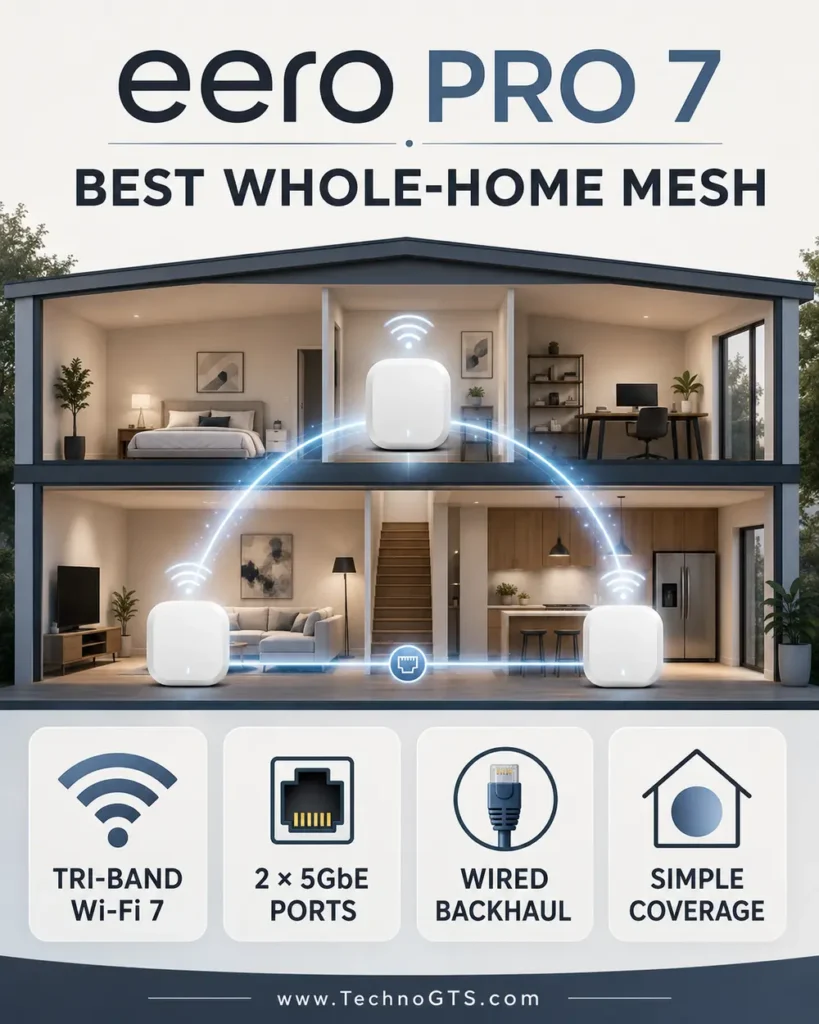
The eero Pro 7 approaches networking differently from the Archer. Instead of exposing numerous controls and several LAN ports, it emphasizes a coordinated mesh that ordinary households can deploy and maintain. Each node can serve as the gateway or an extension, and the app guides placement, updates, and connected-device management. That simplicity is the product’s central value.
Each unit includes two auto-sensing 5GbE Ethernet ports. This design supports a fast WAN and wired LAN at the gateway, or two wired connections on a remote node. A multi-port household still needs a switch. The upside is that wired backhaul can operate without a one-gigabit cap, provided the entire path supports the negotiated rate.
eero describes Pro 7 as tri-band Wi-Fi 7, suitable for internet plans up to 5Gbps, with wireless speeds up to 3.9Gbps under its stated conditions. It also lists more than 200 connected devices and up to 2,000 square feet per unit. Those are planning ceilings, not promises. A concrete floor, foil insulation, radiant barriers, and neighboring networks can dramatically reduce the useful area.
Mesh works best when nodes overlap intelligently. A wireless node placed at the far edge of a dead zone may receive too little signal to relay well. Place it between the gateway and target room. Better yet, connect nodes through Ethernet so their radios serve clients instead of carrying backhaul traffic. The two 5GbE ports make that design attractive.
What We Like
- Simple coordinated system: App-led setup and automatic operation suit households that do not want to become network administrators.
- Two 5GbE ports per node: Strong wired backhaul and multi-gig WAN potential.
- Modern tri-band Wi-Fi 7: Supports current client and mesh capabilities.
- Scalable coverage: Nodes can be added as measurement identifies gaps.
- Low visual impact: Compact equipment is easier to place in living areas than aggressive antenna-heavy hardware.
What Could Be Better
- Two ports are insufficient for many gateway locations without a switch.
- Advanced local configuration is more limited than enthusiast routers.
- Some security, historical, or management capabilities may require eero Plus; verify the current feature split.
- Cloud/app dependence may not appeal to privacy-focused or offline-management users.
How It Fits the Network
Use the first 5GbE port at the gateway for the modem/ONT and the second for the wired LAN. Connect that LAN port to the MS308E if 2.5GbE distribution is sufficient. Remote Pro 7 nodes can connect to wall jacks through the switch, creating a reliable wired backhaul. Confirm that the topology does not place both Ethernet ports on conflicting sides of a loop.
If the provider gateway remains as the router, eero can operate in an appropriate bridge arrangement, but some features may change. Decide which device owns DHCP, NAT, firewall, and port forwarding. Two active routers in series are not inherently broken, but double NAT complicates gaming, inbound access, and troubleshooting.
For alternatives and placement strategy, consult our mesh Wi-Fi category. A household with just one weak bedroom may instead find a targeted device in the Wi-Fi extender guide sufficient, though extenders generally offer less elegant roaming and backhaul than a well-designed mesh.
Setup and Optimization
Install the app, create or sign into the required account, and connect the gateway eero as directed. Allow firmware updates before judging performance. Add nodes one at a time so problems remain traceable. Name locations clearly and record which Ethernet jack serves each node.
Begin with fewer nodes than you think you need. Excessive node density can increase contention and roaming confusion. Test coverage, then add a unit only where the existing system cannot deliver reliable service. Ethernet-backhauled nodes can often be placed farther apart than wireless nodes because they do not require a strong radio link to the gateway.
Use client profiles, guest networking, reservations, and security options deliberately. Automatic management is helpful, but documentation still matters. Record account recovery, device serials, cabling, switch ports, and subscription status so another household member can restore service.
Who Should Buy It?
Choose eero Pro 7 when the house needs multiple access points and the household values a polished, low-maintenance experience. It is particularly appropriate for multi-floor layouts, long ranch homes, connected families, and users willing to add wired backhaul over time.
Skip it if you want extensive local control, no account/cloud dependence, many integrated LAN ports, or the lowest cost. The Archer BE550 offers more visible controls and ports; business-style access points offer deeper management for advanced users.
Bottom Line
The eero Pro 7 is our mesh foundation because it pairs straightforward whole-home management with two 5GbE ports per node. Buy it for coordinated coverage and operational simplicity, not because a coverage number can predict your walls.
NETGEAR MS308E: Best Multi-Gigabit Wired Upgrade
Product Snapshot
| Attribute | Details |
|---|---|
| Best for | Expanding 2.5GbE to desktops, NAS devices, access points, and media systems |
| Ports | 8× auto-negotiating 100Mbps/1Gbps/2.5Gbps |
| Switching | 40Gbps fabric, non-blocking design |
| Management | Web interface, VLAN, QoS, monitoring, jumbo frames |
| Physical design | Fanless metal desktop/wall-mount enclosure |
| Main caution | No PoE; light management still requires configuration discipline |
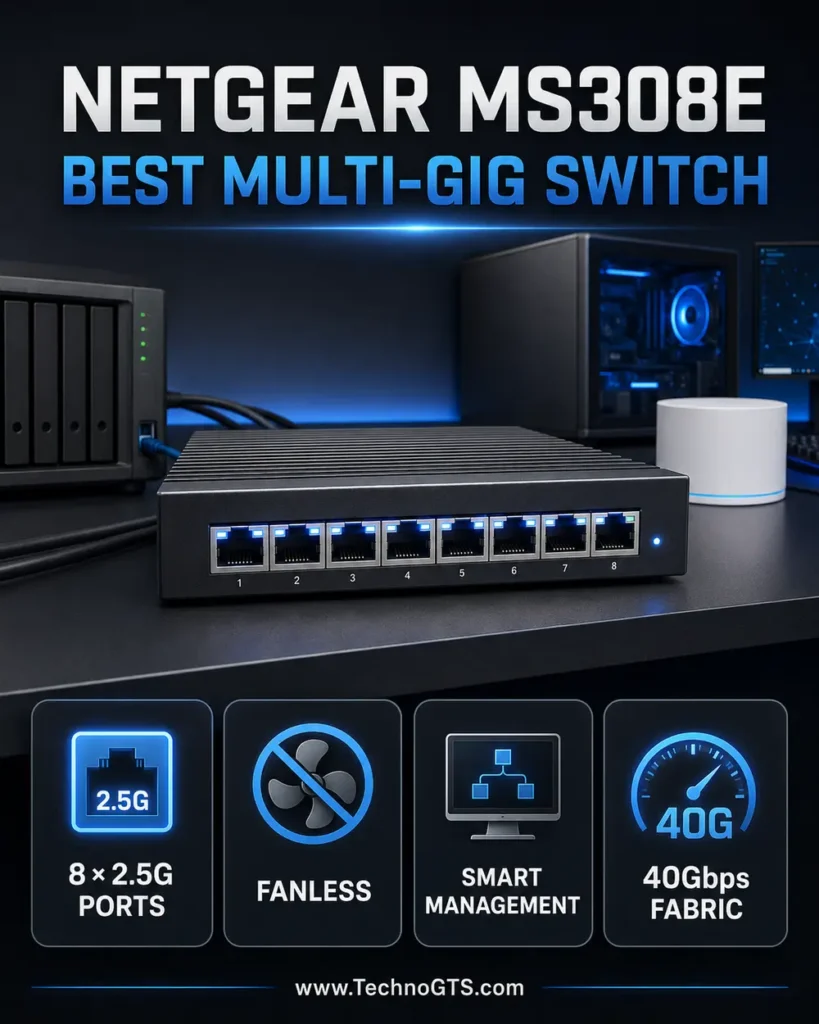
The NETGEAR MS308E is the quiet workhorse of this system. A switch does not create internet access or broadcast Wi-Fi; it connects wired devices within the local network and forwards frames to the correct port. The MS308E supplies eight 2.5GbE-capable ports, allowing several multi-gig devices to communicate without routing all traffic through one overloaded gigabit interface.
Every port auto-negotiates 100Mbps, 1Gbps, or 2.5Gbps. That backwards compatibility lets older printers and smart-home bridges coexist with newer desktops, NAS systems, and access points. NETGEAR specifies a 40Gbps switching fabric, enough for full-duplex operation across the eight 2.5GbE ports under the design assumptions. Real transfers remain limited by clients, storage, protocols, and cables.
Unlike an unmanaged switch, the “Easy Smart” MS308E exposes useful controls through a web interface. VLANs can separate trusted systems from IoT or lab equipment when the router and access points also understand the design. IEEE 802.1p QoS can prioritize classes of local traffic. Port statistics and mirroring help troubleshoot. These features are valuable, but misconfiguration can disconnect devices just as effectively as it can organize them.
The metal enclosure is compact and fanless, making it suitable for a desk, media cabinet with ventilation, or wall. There is no Power over Ethernet, so cameras and access points need their own power or a separate PoE switch/injector. That limitation is important: do not buy it expecting one cable to power remote devices.
What We Like
- Eight 2.5GbE ports: Enough for a meaningful multi-gig home network rather than a two-port upgrade.
- Fanless metal design: Silent, robust, and appropriate near work or entertainment spaces.
- Light management: VLAN, QoS, monitoring, and jumbo-frame support provide useful control.
- Backwards compatibility: Mixed 100Mbps, 1Gbps, and 2.5Gbps devices can connect.
- Efficient operation: IEEE 802.3az support reduces consumption during low activity.
What Could Be Better
- No PoE or PoE+ for access points, cameras, or phones.
- No 5GbE/10GbE uplink; a busy set of 2.5GbE clients shares a 2.5GbE path to an upstream device if connected through one port.
- VLANs require matching router/access-point configuration.
- A fully unmanaged alternative is simpler for users who need only ports.
How It Fits the Network
Connect one port to a 2.5GbE LAN port on the Archer BE550 or to the LAN side of the eero gateway. The other seven can serve a NAS, desktop, work laptop dock, gaming system, remote access point, media server, and wall-jack patch panel. Because there is no dedicated uplink, any port can connect upstream.
For a wired-backhaul mesh, connect each remote node to the switch. Verify the vendor’s supported topology and avoid loops. If an eero node has two wired ports, do not accidentally connect both to the same Layer 2 network unless the platform explicitly supports the arrangement; ordinary unmanaged loops can overwhelm a network.
Our Ethernet switch category covers unmanaged, smart, PoE, and higher-speed alternatives. Before assuming a port problem, review the physical path in our Ethernet cable guide, because auto-negotiation may fall to 1Gbps or 100Mbps when a pair is damaged.
Setup and Optimization
The switch can forward traffic out of the box. For management, discover its address, set a strong password, assign a documented management IP, and update firmware. Export the configuration if supported. Avoid placing the management interface on an untrusted IoT VLAN without a deliberate access path.
Introduce VLANs only after the flat network works. Create one VLAN, tag/untag the correct ports, configure the router interface and DHCP scope, then test. Repeat gradually. A port’s native/untagged VLAN and allowed tagged VLANs must match the attached device. Consumer clients usually expect untagged traffic.
Jumbo frames can reduce overhead for large local transfers, but every device along the path must use a compatible MTU. They do not increase internet speed and can cause confusing failures when inconsistently configured. Leave the default MTU unless a measured local workload justifies the change.
Who Should Buy It?
Buy the MS308E if you have at least three 2.5GbE-capable devices, expect more, or need fast wired backhaul and light management. It is ideal for creators transferring large files, households with a multi-gig NAS, home labs, and mixed wired/wireless networks.
Skip it if every device is gigabit, you need PoE, or you require a 10GbE backbone. A less expensive gigabit switch, a PoE model, or a switch with a 10GbE uplink may be more appropriate.
Bottom Line
The MS308E expands 2.5GbE cleanly and silently. Its eight multi-gig ports and modest management layer make it a practical bridge between consumer routers and more complex business switches.
Plugable USBC-E2500: Best Quick Wired Client Upgrade
Product Snapshot
| Attribute | Details |
|---|---|
| Best for | Adding 2.5GbE to laptops, mini PCs, desktops, and selected USB-C devices |
| Host connection | USB-C with integrated USB-A conversion; USB 3.0 required for full performance |
| Network | 2.5GBASE-T, backwards compatible with lower Ethernet rates |
| Chipset | Realtek RTL8156B |
| Features | Wake-on-LAN, EEE, link/activity LEDs, up to 9K jumbo frames on supported platforms |
| Main caution | Driver and feature behavior varies by OS; bus and host can limit speed |
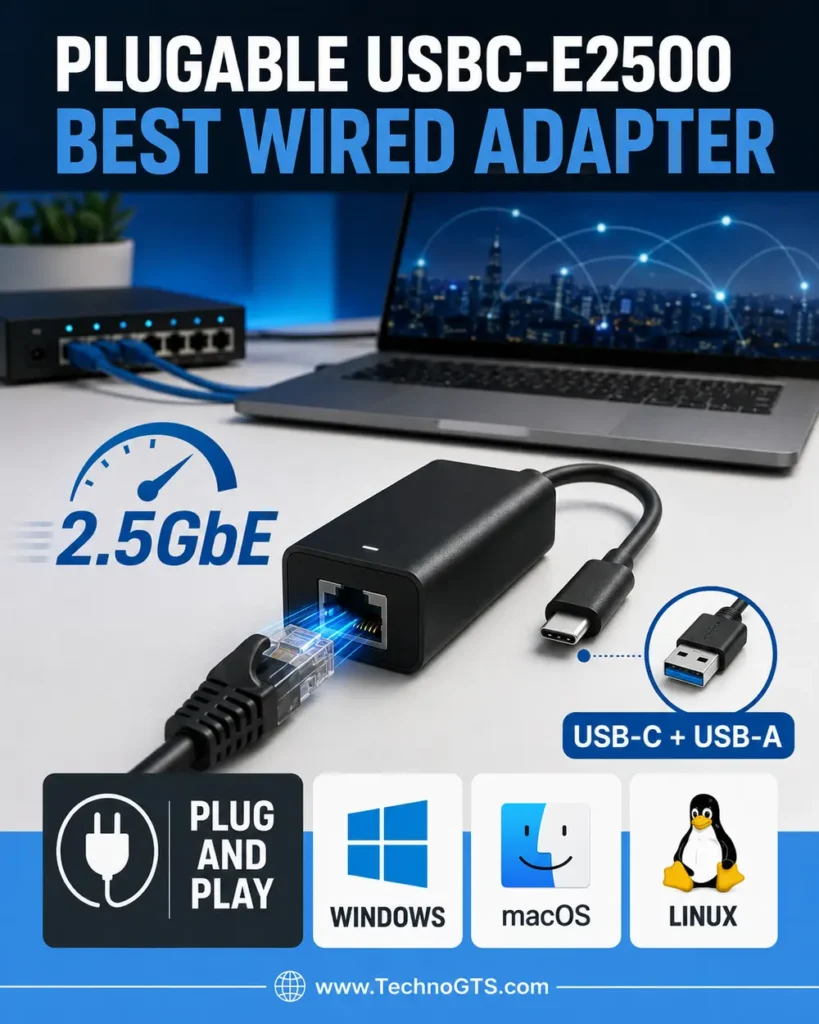
The Plugable USBC-E2500 solves a common mismatch: modern laptops often omit Ethernet, while affordable desktops and docks may stop at one gigabit. This small bus-powered adapter adds a 2.5GBASE-T port through USB-C or USB-A. It is one of the quickest ways to connect a portable computer to a multi-gig switch without opening the chassis.
Plugable uses a Realtek RTL8156B chipset and documents compatibility with current Windows, macOS, ChromeOS, Linux, and selected USB-C iPhones, subject to platform details. The included hybrid connector is convenient for mixed fleets. Full performance requires a USB 3.x 5Gbps host path; USB 2.0 compatibility operates at reduced speed.
The adapter can use existing Cat5e or better cabling for 2.5GbE when the channel is in good condition and within standard limits. That makes 2.5GbE an attractive incremental upgrade: router, switch, client, and cable can often be improved without installing an entirely new cable plant. Local file transfers, backups, and large media workflows benefit even when internet service is below one gigabit.
Bus power keeps the device simple, but the complete USB path matters. A low-quality hub, long extension, overloaded dock, or power-management policy can cause resets. Direct connection to a known USB 3.x port is the best troubleshooting baseline. The adapter’s LEDs confirm link and activity, while the operating system shows negotiated rate.
What We Like
- Two host connector styles: USB-C and USB-A support is useful across old and new computers.
- 2.5GbE without opening the PC: Ideal for laptops, mini PCs, and compact desktops.
- Broad OS coverage: Current mainstream platforms have documented support.
- Existing-cable potential: 2.5GBASE-T is designed to work over compliant Cat5e or better channels.
- Low power and portability: No separate adapter is required.
What Could Be Better
- macOS, Windows, Linux, and mobile platforms do not expose every feature identically.
- Sleep/wake and dock behavior can vary with host firmware and power settings.
- Sustained transfer speed depends on CPU, storage, USB controller, switch, and cable.
- It provides one interface; it is not a switch or internet-sharing appliance.
How It Fits the Network
Connect the RJ45 side to the MS308E and the USB side directly to the client. Confirm the switch and operating system both report 2.5Gbps. If they show 1Gbps, test a known-good cable, another switch port, and a direct USB 3.x host port. If they show 100Mbps, suspect cable pairs or negotiation before blaming internet service.
The adapter is particularly valuable for testing. A wired 2.5GbE-capable laptop can measure the router, switch, and local server independently of Wi-Fi. It becomes a portable diagnostic tool as well as a permanent interface.
Readers who need an internal PCIe card, Thunderbolt adapter, or Wi-Fi/Ethernet combination can compare more products in our network adapter category. If the goal is strictly wireless connectivity, our USB Wi-Fi adapter guide covers a different class of device.
Setup and Optimization
On a current system, connect the adapter and allow the OS to install its supported driver. Plugable notes that Windows can obtain drivers through Windows Update and that current macOS versions use a built-in NCM driver. Review the latest vendor compatibility page for exceptions and optional drivers. Corporate-managed systems may block driver installation.
Disable aggressive USB selective suspend only if measured disconnects justify it; changing global power settings can reduce battery life. Keep the adapter ventilated during sustained transfers. Avoid tight bends at the integrated cable and relieve strain where the Ethernet cable is heavy.
Wake-on-LAN depends on more than the adapter specification. The host firmware, USB power state, OS driver, dock, and network must support wake in the desired sleep/off state. Test it rather than treating the feature list as a guarantee.
Who Should Buy It?
Choose the USBC-E2500 for a laptop or small computer that needs fast, stable wired access to a 2.5GbE network. It is excellent for home-office docks, NAS transfers, troubleshooting, and temporary workstation connections.
Skip it if the computer already has reliable 2.5GbE, the entire network is gigabit, the host exposes only USB 2.0, or you need 5GbE/10GbE. Buy the interface that matches the slowest planned link without excessive headroom.
Bottom Line
Plugable’s adapter is a small, targeted upgrade with disproportionate diagnostic and productivity value. It turns a compatible USB port into a 2.5GbE client connection without forcing a broader rebuild.
Cable Matters Cat6A Shielded Patch Cable: Best High-Spec Physical Link
Product Snapshot
| Attribute | Details |
|---|---|
| Best for | Short 10GbE-capable patch links and electrically noisy environments |
| Category | Cat6A shielded twisted-pair patch cable |
| Published capability | Up to 10Gbps; high-frequency Cat6A operation |
| Connector style | Snagless RJ45 patch construction |
| Compatibility | Backwards compatible with slower BASE-T Ethernet |
| Main caution | Shielding, stiffness, grounding, and authenticity matter |
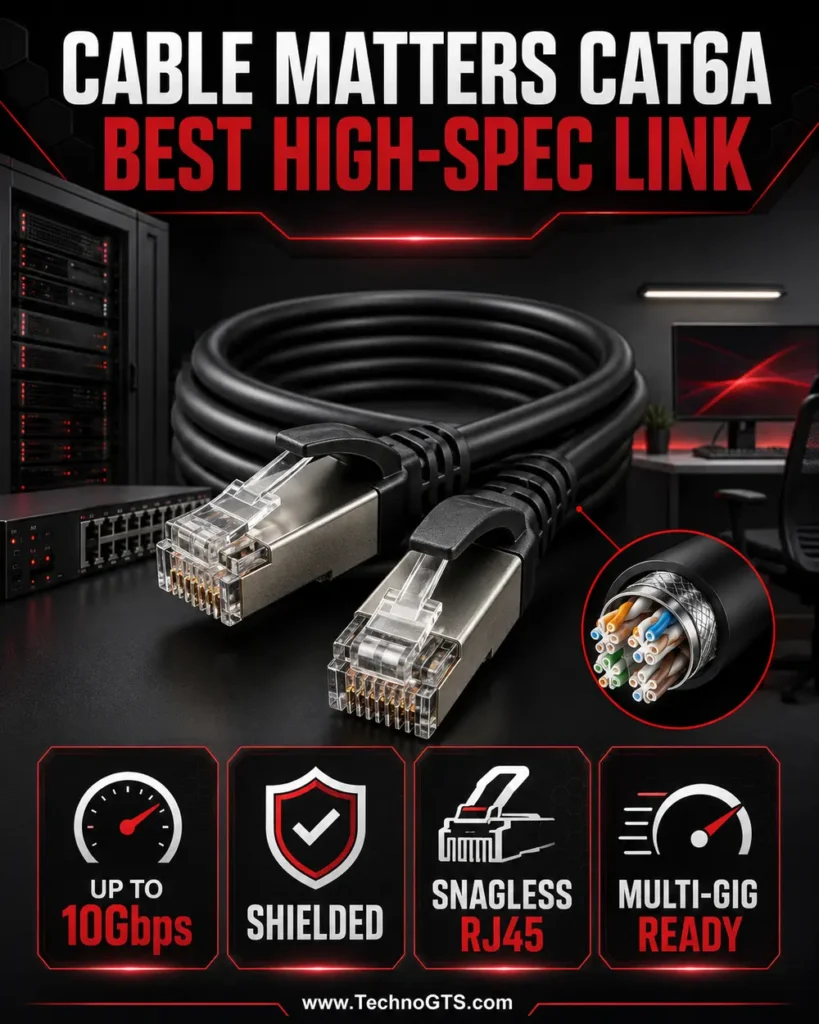
The Cable Matters Cat6A shielded patch cable is the least exciting product in the list and one of the easiest to misunderstand. Ethernet cable does not accelerate packets beyond the negotiated port rate. Its job is to carry the required signal reliably with acceptable insertion loss, return loss, crosstalk, and noise immunity. A good cable disappears from daily attention.
Cat6A is designed for 10GBASE-T across the full standard channel length when the installed channel meets specification. Cable Matters lists up to 10Gbps operation and a high-frequency rating for this shielded patch family. Short patch cables can connect a router to a switch, switch to NAS, or wall jack to desktop while preserving a multi-gig or 10GbE path.
Shielding is situational. It can reduce electromagnetic interference when used as part of a compatible shielded system with correct bonding and grounding. An isolated shield or incorrect installation can offer little benefit and, in some environments, create unwanted current paths. For ordinary residential patching away from strong interference, certified unshielded Cat6 is often easier to route and completely adequate.
Cat6A cables are thicker and less flexible than many Cat5e/Cat6 cords. Respect bend radius, avoid crushing under furniture, keep data cable away from power where possible, and use the correct length. Coiling excessive cable beside power supplies undermines clean installation. The snagless boot protects the RJ45 latch but needs clearance in dense switch rows.
What We Like
- Clear standards-based purpose: Supports high-speed copper Ethernet without questionable proprietary claims.
- 10GbE headroom: Appropriate for router-switch-NAS links and future equipment.
- Shielded construction: Useful in selected high-interference environments with a proper channel.
- Backwards compatibility: Works with 2.5GbE, 1GbE, and lower-rate interfaces.
- Multiple lengths: Lets buyers avoid large coils and excessive slack.
What Could Be Better
- Shielded Cat6A is stiffer and bulkier than ordinary home patch cable.
- It cannot improve a link capped by the ports or client.
- Proper shielding depends on the entire channel and grounding design.
- Marketplace listings can mix sellers or revisions; use an authorized source and inspect what arrives.
How It Fits the Network
Use a short Cat6A patch cord between the Archer BE550 and MS308E, between a multi-gig switch and NAS, or between a shielded patch panel and workstation. Existing certified Cat5e can remain on verified 2.5GbE links. Replace cable based on failed negotiation, errors, physical damage, environmental need, or a planned 10GbE channel—not category anxiety.
Permanent in-wall cable is different from a factory patch cord. Building codes, fire rating, pathway fill, bend radius, termination, grounding, and test requirements apply. Use solid-conductor in-wall cable with the appropriate listing, not a long stranded patch cable concealed inside walls. Hire a qualified low-voltage installer where required.
Our Ethernet cable category explains Cat5e, Cat6, Cat6A, and application choices. Pair the physical channel with a suitable device from our Ethernet switch guide, because cable and electronics must support the same target rate.
Setup and Validation
Inspect both RJ45 plugs for straight contacts, intact latch, secure boot, and jacket damage. Route the cable without sharp bends or tension. Insert until the latch clicks, then confirm the operating system and switch report the target rate. Speed LEDs are helpful but model-specific; use the management interface for certainty.
Run a sustained local transfer and inspect interface error counters. A cable can negotiate at 2.5Gbps yet accumulate errors under load. Swap one component at a time. Label both ends with destination and, in larger installations, port number. Good labels reduce future outages more than premium cosmetics.
Do not use an internet speed test as the only cable test. A 500Mbps internet plan cannot distinguish a healthy gigabit link from a healthy 2.5GbE link. Use local endpoints that can generate and receive the target throughput.
Who Should Buy It?
Choose shielded Cat6A for short high-speed patching, a verified noisy environment, or a shielded structured-cabling system. It is sensible around a multi-gig router, switch, NAS, and workstation when physical stiffness is manageable.
Skip it when existing Cat5e/Cat6 negotiates reliably at the desired speed or when shielding cannot be implemented correctly. Standards-compliant unshielded Cat6 is the better default for many homes.
Bottom Line
Cable Matters Cat6A is the physical-layer pick because it offers documented high-speed capability from a recognized accessory brand. Its value comes from correct application and verification, not from assuming a higher category magically lowers latency.
Detailed Buying Guide: Build the Home Network in the Right Order
1. Draw the Current Network Before Replacing It
Create a simple diagram showing the provider line, modem/ONT, router, switches, wall jacks, mesh nodes, and important clients. Add port rates and cable categories where known. Mark wireless dead zones and high-traffic devices. The diagram reveals single points of failure and accidental bottlenecks.
Write down who manages each service account, which device runs DHCP, the LAN subnet, static reservations, guest networks, and admin credentials storage. A network is hard to troubleshoot when nobody knows whether a box is routing, bridging, or repeating.
Use our best home networking hub for topology ideas. The broader networking and Wi-Fi section helps identify unfamiliar components before they are replaced.
2. Establish the Internet Baseline
Test a capable wired computer at the router. Confirm the WAN and LAN negotiate at the correct rates. Run several tests at different times. If the provider plan is symmetric fiber, upload should reflect that service; if it is cable, upload may be much lower by design. Record latency and packet loss.
If the wired baseline is poor, rebooting or replacing Wi-Fi nodes is unlikely to help. Inspect modem signal/status where supported, update firmware, replace a suspect short cable, and contact the provider with measurements. A provider gateway may need bridge mode before your own router can control the network cleanly.
Cellular service requires a different workflow based on carrier bands, signal, plan, and placement. See our 5G routers category rather than applying cable/fiber assumptions to a radio WAN.
3. Size the Router to the Plan and LAN
A gigabit internet plan does not require a router advertised at 10Gbps Wi-Fi, but the router must handle NAT, security, and concurrent traffic at the required rate. Multi-gig service needs a WAN port above 1Gbps and at least one equally fast LAN path. Otherwise the provider speed stops at the port.
Count wired ports and note their rate. A router with one 2.5GbE WAN and gigabit LAN cannot deliver more than gigabit to one wired client. Link aggregation does not automatically create one faster client connection. A router like the BE550 avoids this issue with several 2.5GbE LAN ports.
Compare mature Wi-Fi 6 routers against newer Wi-Fi 7 routers based on clients and topology, not the newest label alone.
4. Understand Wi-Fi Generations and Bands
Wi-Fi 6 improves efficiency, scheduling, and capacity on 2.4GHz and 5GHz. Wi-Fi 6E extends those capabilities into 6GHz. Wi-Fi 7 adds features such as 320MHz channels, 4K-QAM, Multi-Link Operation, and Multi-RU support. Each benefit requires compatible radios, firmware, spectrum, and conditions.
The 2.4GHz band travels farther and serves many IoT devices but is crowded and offers less throughput. Five gigahertz balances capacity and range. Six gigahertz provides wider clean channels but attenuates faster through walls and requires newer clients. Do not disable 2.4GHz solely because 6GHz is faster nearby.
5. Choose Standalone Router, Mesh, or Access Points
A standalone router is efficient for a small or centrally serviceable home. Mesh uses multiple coordinated units and is easier to deploy without advanced knowledge. Traditional wired access points offer precise placement and management but may require Ethernet and a separate router/controller.
Wireless mesh nodes consume radio capacity for backhaul unless a dedicated arrangement or additional band mitigates it. Wired backhaul gives every node a predictable uplink and is the preferred solution for high-demand rooms. Mesh marketing coverage estimates assume open conditions and should be reduced for dense construction.
Explore our mesh Wi-Fi guide for whole-home systems. Use the Wi-Fi extender category for a narrow, lower-cost coverage correction when seamless multi-node performance is not essential.
6. Place Wireless Gear for Radio, Not Decoration
Put access points high, open, and close to the center of their service area. Avoid metal enclosures, floor placement, closets full of wiring and power supplies, aquariums, mirrors with metallic backing, and large appliances. The visually convenient corner behind a television is often a poor RF location.
Nodes on different floors can benefit from staggered positions rather than stacking vertically through dense materials. Use a floor plan and test grid. Move a unit several feet and retest; small changes can alter multipath and obstruction.
7. Plan Channels and Widths Conservatively
Wider channels increase peak throughput but consume more spectrum and may suffer more interference. In dense neighborhoods, an 80MHz 5GHz channel can be more reliable than 160MHz. On 2.4GHz, 20MHz generally avoids overlap. Automatic selection can work well, but verify the outcome.
Six-gigahertz offers more wide-channel space, yet range remains the tradeoff. Wi-Fi 7 MLO may use multiple bands for compatible clients, but early device behavior and firmware continue to mature. Prioritize stability for work and smart-home devices.
8. Wire the Devices That Do Not Move
Desktops, televisions, game consoles, NAS systems, cameras, printers, and mesh nodes benefit from Ethernet. Wiring removes those flows from shared airtime, improving wireless performance for phones and tablets. It also makes latency and troubleshooting more predictable.
Use switches to add ports, not splitters. An Ethernet switch learns addresses and forwards frames; passive splitters do not create normal independent network connections. Select unmanaged for simplicity, smart managed for VLAN/QoS/visibility, and PoE when remote devices need power.
Our Ethernet switch guide explains these types. Our Ethernet cable guide covers permanent versus patch cable and category selection.
9. Decide Whether 2.5GbE Is Worth It
Two-and-a-half-gigabit Ethernet is a practical middle ground. It often runs over existing Cat5e, uses less power than 10GBASE-T, and appears on consumer routers, switches, NAS devices, and PCs. It improves large local transfers and supports internet plans above one gigabit.
It is not necessary for a household with a 300Mbps plan and no local server. Upgrade when at least two endpoints can use the rate or when wired backhaul must carry aggregate traffic. A lone 2.5GbE port connected to a gigabit network negotiates at one gigabit.
10. Identify Client-Side Bottlenecks
A client with a one-stream Wi-Fi 5 radio, crowded 2.4GHz connection, slow USB bus, or old driver will not show the network’s capability. Check the negotiated rate and radio generation. Update firmware and drivers. Compare the same location with a current phone or wired laptop.
For a missing wired port, a device like the Plugable USBC-E2500 is a targeted fix. Explore internal and external options in our network adapter category. For wireless-only upgrades, use the USB Wi-Fi adapter guide.
11. Use VLANs Only With a Clear Goal
VLANs separate Layer 2 broadcast domains. They can isolate IoT devices, work systems, guests, and labs, but the router must provide inter-VLAN routing and firewall policies. A VLAN on the switch alone does not create secure internet access or DHCP.
Start with trusted, IoT, and guest networks only if the equipment supports them end-to-end. Deny IoT-to-trusted traffic by default, then allow specific services such as a controller or printer. Remember that discovery protocols may not cross subnets without a relay.
12. Configure QoS With Realistic Expectations
Quality of Service can prioritize traffic when a link is congested. It cannot create bandwidth. Smart Queue Management on the true bottleneck can reduce latency under load more effectively than arbitrary “gaming priority” labels. Set rates slightly below measured WAN capacity when the algorithm requires it.
Switch-level 802.1p priorities affect local tagged traffic and must align with the network design. Avoid assigning everything high priority; if all traffic is urgent, none is.
13. Secure the Administrative Plane
Change default passwords, enable multifactor authentication where offered, update firmware, disable remote administration unless required, and store recovery information securely. Use unique Wi-Fi credentials, WPA2/WPA3 as client support permits, and a guest network for visitors.
Router security subscriptions can add filtering and historical insights, but they do not replace endpoint updates, backups, and cautious behavior. Review what data the app/cloud platform collects and which functions disappear when a subscription ends.
14. Prepare for Power and Service Failures
Place the modem/ONT, router, switch, and essential access point on a correctly sized UPS. A laptop staying powered is irrelevant if the ONT and router shut down. Test runtime and automatic recovery. Some fiber providers remain operational during a local outage; others may not.
Cellular backup can maintain essential connectivity when wired service fails. It needs a compatible plan, acceptable indoor signal, and a router with failover or a manual procedure. Document how household members switch connections.
15. Avoid Common Cabling Mistakes
Do not run patch cable loose through walls. Use appropriately listed solid-conductor cable for permanent installation. Keep bend radius, pull tension, separation from power, and firestopping requirements. Terminate consistently and label both ends.
Avoid copper-clad aluminum cable. Choose solid copper from a reputable source. Category claims above the needs of common RJ45 home networks can be marketing noise. Certification and installation quality matter more than a printed “Cat 8” label.
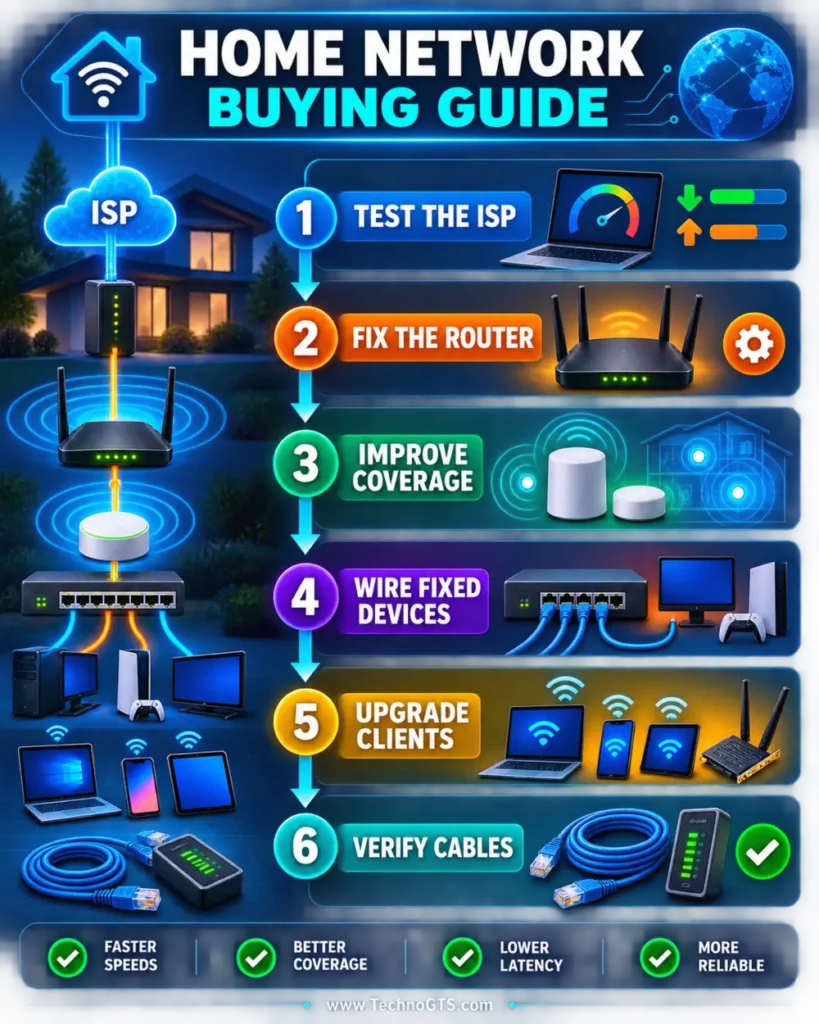
16. Create an Upgrade Sequence
- Fix provider/modem/ONT issues.
- Move or replace the router.
- Add wired or mesh coverage.
- Wire stationary high-traffic devices.
- Add a switch at the distribution point.
- Upgrade selected client adapters.
- Replace only cables that fail requirements.
- Add segmentation, monitoring, and backup power.
This order keeps each change measurable. It also prevents buying a 10GbE switch before discovering that the actual pain is a poorly placed router.
Product Comparison Tables
Role and Best-Fit Comparison
| Product | Network role | Best reason to buy | Best companion gear | Main reason to skip |
|---|---|---|---|---|
| TP-Link Archer BE550 | Router/firewall/Wi-Fi core | Five 2.5GbE ports plus tri-band Wi-Fi 7 | MS308E or EasyMesh node | You need several mesh nodes and minimal controls |
| eero Pro 7 | Whole-home mesh | Coordinated coverage with two 5GbE ports per node | Multi-gig switch and wired backhaul | You want advanced local administration |
| NETGEAR MS308E | Wired distribution | Eight silent 2.5GbE ports with light management | Router, NAS, wired nodes | You need PoE or 10GbE uplink |
| Plugable USBC-E2500 | Client interface | Add 2.5GbE over USB-C/USB-A | MS308E and known-good cable | Host has only USB 2.0 or already has 2.5GbE |
| Cable Matters Cat6A shielded | Physical link | High-spec short patching/selected interference control | Multi-gig router, switch, NAS | Existing cable works or shielding is inappropriate |
Link-Rate Reality Check
| Path | Maximum negotiated link in this example | Likely limiting component |
|---|---|---|
| 2.5Gbps ISP → Archer BE550 → 2.5GbE PC | 2.5Gbps per wired hop | ISP overhead, router processing, PC |
| Archer BE550 → MS308E → Plugable adapter | 2.5Gbps | USB host, adapter, storage, cable |
| eero Pro 7 → MS308E | 2.5Gbps | MS308E port, despite eero’s 5GbE port |
| MS308E → 1GbE television | 1Gbps | Television interface |
| 10GbE NAS → MS308E | 2.5Gbps | Switch port |
| Wi-Fi 7 router → Wi-Fi 6 client | Client-dependent Wi-Fi 6 link | Client radio and conditions |
Complexity and Ownership
| Product | Physical setup | Configuration depth | Recurring-service exposure | Maintenance priority |
|---|---|---|---|---|
| Archer BE550 | Medium | Medium–high | Optional feature tiers | Firmware, backups, channel review |
| eero Pro 7 | Easy | Low–medium | Optional subscription/cloud ecosystem | App account, updates, placement |
| MS308E | Easy | Medium if VLANs used | None normally | Firmware, config backup, port labels |
| USBC-E2500 | Easy | Low | None | Driver/OS compatibility, cable strain |
| Cat6A patch cable | Easy physically | None | None | Inspection, routing, labels |
When the comparison shows that a mesh is unnecessary, our Wi-Fi router category offers standalone options. When the switch is the clear priority, review Ethernet switches by port count, speed, management, and PoE instead of buying around one model.
Client and physical-layer choices deserve separate attention. Use our network adapter guide for endpoint interfaces and the Ethernet cable category for standards-based cabling decisions.
Frequently Asked Questions
1. What home networking gear should I upgrade first?
Upgrade the first measured bottleneck. If wired internet at the router is slow, fix the provider/modem/WAN path. If nearby Wi-Fi is fast but distant rooms are slow, improve placement or coverage. If local transfers stop near one gigabit, inspect switch, ports, adapters, and cable. Do not begin with the newest product label.
Start with the home networking guide and compare router roles in the Wi-Fi router category.
2. Will Wi-Fi 7 make my internet faster?
Only when the current Wi-Fi link is the bottleneck and the client supports relevant Wi-Fi 7 capabilities. It cannot raise the ISP plan. Wi-Fi 7 can improve local capacity, spectrum use, and latency under suitable conditions, especially on 6GHz, but range and compatibility still matter.
Compare current products in our Wi-Fi 7 router guide and value-oriented alternatives in the Wi-Fi 6 router section.
3. Is a mesh system better than one powerful router?
A mesh is better when multiple properly placed nodes are needed to cover the structure. One router is simpler and uses less equipment when it can serve the home. Wired access points or wired mesh nodes provide the strongest multi-room design. Adding nodes too close together can hurt rather than help.
4. Does mesh Wi-Fi reduce speed?
Wireless backhaul can reduce available airtime because a node must receive and retransmit traffic. Dedicated backhaul radios and modern protocols can reduce the penalty, while Ethernet backhaul largely avoids it. The exact effect depends on node placement, band, interference, and client traffic.
Read our mesh Wi-Fi coverage guide and compare targeted Wi-Fi extenders when only one small area needs help.
5. Do I need a 2.5GbE switch for gigabit internet?
Not necessarily. A gigabit switch can deliver close to a gigabit per port and is sufficient for many homes. A 2.5GbE switch is valuable for internet plans above one gigabit, faster NAS transfers, aggregated wired backhaul, or future devices. At least two endpoints must support the faster rate to improve a local path.
6. What is the difference between a router and a switch?
A router connects different IP networks, typically the home LAN and internet, and performs routing, firewall, DHCP, and often Wi-Fi. A switch connects Ethernet devices within the LAN and forwards frames based on addresses. A switch adds ports but does not replace a router.
See our Ethernet switch guide and home networking section for topology examples.
7. Can the NETGEAR MS308E power Wi-Fi access points?
No. The MS308E model discussed here does not provide PoE. Use access points with local power, PoE injectors, or a switch explicitly rated for the required PoE standard and total power budget. Check whether each device requires PoE, PoE+, or PoE++.
8. Will Cat6A improve latency compared with Cat5e?
Not when both cables negotiate the same Ethernet rate without errors. Propagation differences over home distances are negligible. Cat6A provides signal-performance headroom for 10GBASE-T and interference control in appropriate designs. Replace Cat5e based on required rate, errors, length, damage, or standards—not gaming latency marketing.
Review our Ethernet cable guide and pair cables with an appropriate multi-gig switch.
9. Can Cat5e carry 2.5GbE?
Yes. 2.5GBASE-T was designed to operate over compliant Cat5e channels within applicable limits. Installation condition still matters. Damaged pairs, poor terminations, excessive length, or interference can reduce negotiation or cause errors. Test the existing cable before replacing it.
10. Is shielded Ethernet cable better for a normal house?
Not automatically. Shielding is helpful in selected noisy environments when the entire channel and grounding are designed correctly. It adds thickness, cost, and installation requirements. Certified unshielded Cat6 is a more practical default for many residential runs.
11. Can a USB 2.5GbE adapter reach full 2.5Gbps?
It can approach the practical capability of 2.5GbE under favorable conditions with USB 3.x, a fast host, correct driver, 2.5GbE switch, good cable, and sufficiently fast storage or test endpoints. Protocol overhead prevents a 2.5Gbps application result equal to the raw line rate.
Compare endpoint options in our network adapter category and wireless alternatives in the USB Wi-Fi adapter section.
12. Why does my 2.5GbE device connect at only 1Gbps?
One component is negotiating at the lower common rate. Check the switch port, router port, adapter settings, USB host, cable pairs, driver, and any wall jacks or couplers. Test a short known-good cable directly between the two 2.5GbE devices. Auto-negotiation should not be manually forced unless the vendor directs it.
13. How many mesh nodes does my home need?
There is no reliable answer from square footage alone. Begin with the gateway and one node for a typical multi-area problem, measure, then add only as needed. Dense walls and floors require closer spacing. Wireless nodes need a strong link to the upstream node; wired nodes can be placed around coverage needs.
14. Should every mesh node use Ethernet backhaul?
Use Ethernet where practical for the most predictable capacity and latency. A well-placed wireless node can still work very well. Mixed wired and wireless backhaul is acceptable when the system supports it. Label cables and verify the app shows the intended path.
Find placement and topology guidance in our mesh Wi-Fi section and cable planning in the Ethernet cable category.
15. Should I use one Wi-Fi name for all bands?
A unified SSID simplifies roaming and lets the system steer capable devices. Separate names are useful during troubleshooting or when an IoT device supports only 2.4GHz and has a poor setup app. After diagnosis, one name is usually more convenient if steering works reliably.
16. Does a Wi-Fi extender create a second network?
Some extenders repeat the same SSID, while others use a separate name. Even with the same name, roaming may be less coordinated than a mesh. Extenders are suitable for limited coverage fixes but need a strong connection to the router; placing one inside the dead zone relays a weak link.
Explore Wi-Fi extenders for targeted fixes and mesh systems for coordinated multi-node coverage.
17. How can I make video calls more reliable?
Use Ethernet for the work computer where possible. If using Wi-Fi, place an access point closer, choose a clean 5GHz/6GHz channel, and reduce upstream congestion. Test loaded latency and upload capacity. Smart queue management on the actual WAN bottleneck can help more than prioritizing one device in a switch.
18. Do I need VLANs for smart-home devices?
VLANs improve isolation when configured end-to-end with firewall policies, but they are optional for ordinary households. A separate IoT or guest SSID offered by the router may be simpler. Ensure phones and controllers can reach required devices without opening the entire trusted LAN.
19. Should I replace my provider’s gateway?
Replace or bridge it only when your provider supports the arrangement and your own router solves a real limitation. Provider gateways simplify support and may integrate voice or TV services. A user-owned router offers better controls, ports, Wi-Fi, or updates but creates additional responsibility.
If the service is cellular rather than cable/fiber, review 5G routers for carrier constraints. For a standard wired WAN, compare Wi-Fi routers by port rate and coverage design.
20. What should I test before the return window closes?
Test wired WAN speed, local LAN transfers, all rooms, evening congestion, roaming, mesh backhaul, every multi-gig port, sleep/wake behavior, firmware updates, guest/IoT access, VPN or port forwarding, and recovery after power loss. Keep notes so one change can be compared with the baseline.
Final Verdict
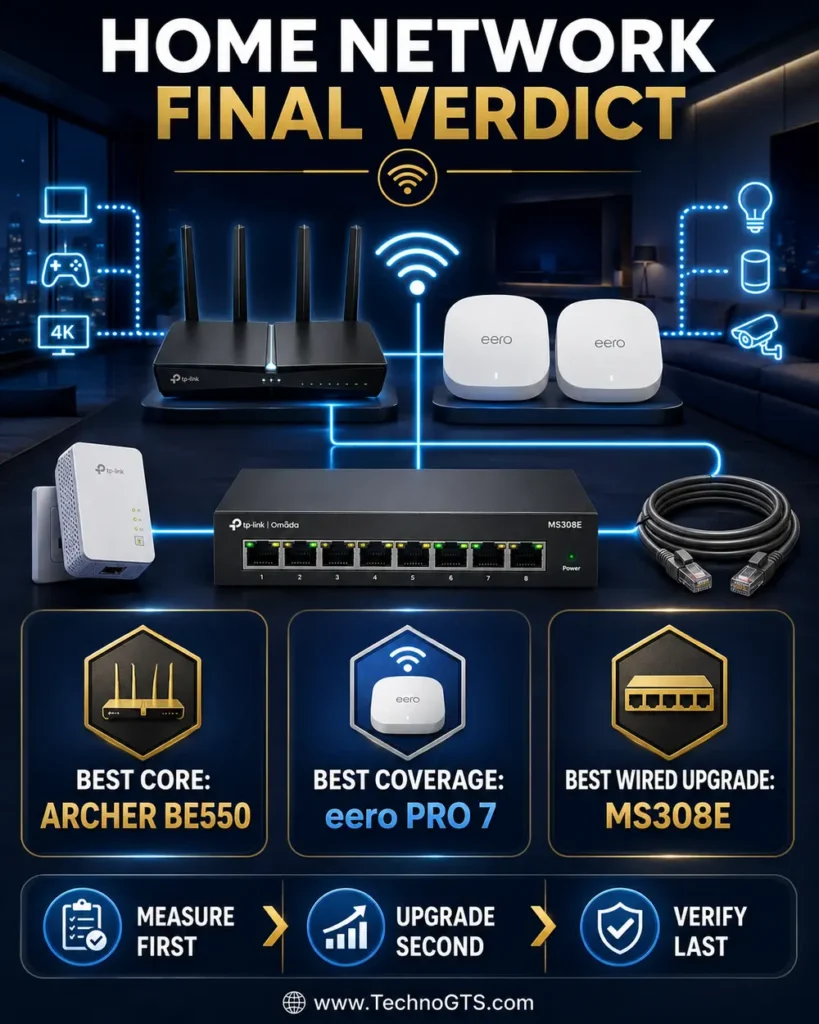
The best home network is the one whose parts match. For a central multi-gig core, the TP-Link Archer BE550 is our top router because it combines tri-band Wi-Fi 7 with one 2.5GbE WAN and four 2.5GbE LAN ports. It can stand alone in a smaller home, feed an EasyMesh expansion, or hand traffic to a wired switch without an immediate gigabit bottleneck.
Choose the eero Pro 7 when coverage across several rooms or floors matters more than advanced local controls. Its two 5GbE ports per node make wired backhaul unusually capable. Add the NETGEAR MS308E when multiple wired devices need 2.5GbE. Use the Plugable USBC-E2500 to bring an older or thinner client onto that wired network. Deploy the Cable Matters Cat6A shielded patch cable only where high-speed patching or a properly designed shielded channel justifies it.
Do not purchase all five by default. Measure the service, map the rooms, wire stationary devices, and upgrade the first limiting hop. The TechnoGTS home networking hub can help extend the blueprint, while our networking and Wi-Fi portal organizes the router, mesh, switch, cable, and adapter categories.
🏁 Our practical recommendation: Start with the Archer BE550 for a powerful central network or eero Pro 7 for a multi-node coverage problem. Add the MS308E, Plugable adapter, and selected Cat6A patch cables only when the wired path demonstrates a need.
Research References
- TP-Link Archer BE550 official product page
- eero Pro 7 official product page
- NETGEAR MS308E official product page
- Plugable USBC-E2500 official product page
- Cable Matters Cat6A Shielded Patch Cable official product page
Disclosure: Specifications, firmware, services, subscriptions, prices, and availability can change. Verify the exact model, hardware revision, and current vendor terms before purchase. TechnoGTS may earn a commission from qualifying purchases if affiliate links are added, without changing the price paid by the reader.

